Switching from default device configurations
Workflow profiles replace default device configurations. A server that has any default device configuration, deployed or in draft, when it updates to version 2.86 will keep using them until a full administrator switches to using workflow profiles. After the switch, each role's device settings and setup are set in the Device settings and Setup sections of its workflow profile, and each role's deployed configuration, if it has one, is copied there (see below).
Before the switch
Before your server switches to using workflow profiles:
The Collect tab shows the default device configurations panel in the Mobile data collection section. You can continue creating, editing, and deleting default device configurations in this section, and devices continue getting those settings at quick setup.
At the bottom of the panel, a Workflow profiles note explains that profiles replace device configurations, with a Switch to workflow profiles button for full administrators. Anyone else reads “Only a full administrator can switch this server.”
Profiles change nothing on any mobile device, even if they have been updated to Collect 2.86.
Web profiles already attached to roles keep working on the web, but no profile can be created or changed, in the console or through the API, until the server switches.
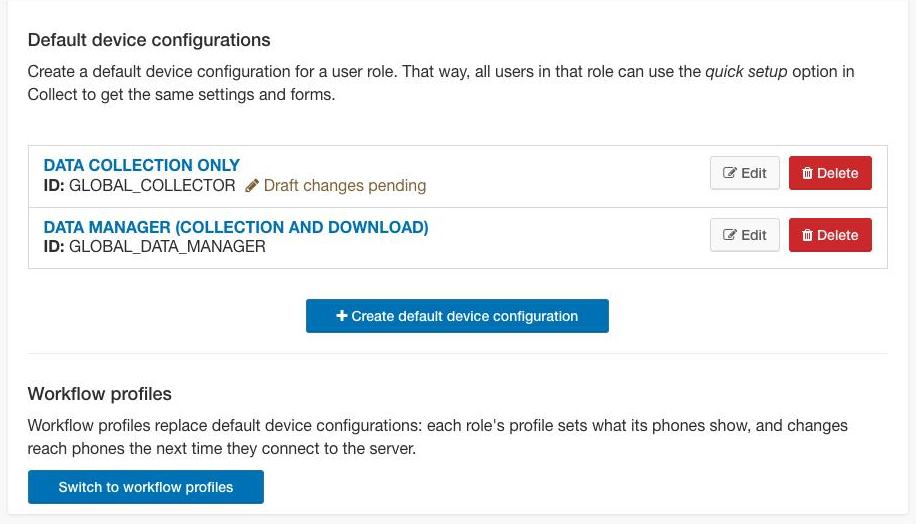
On a server that still uses default device configurations, the switch sits at the bottom of the device configuration panel. Click the image to enlarge it.
Switching
When you start the switching process, you must first finish receiving settings from mobile devices. The switch can't run while a role is waiting for settings from a device, or has received settings that aren't saved. A dialog box will show listing those roles, and state what to do for each before you can progress. A draft configuration with nothing received from a device doesn't stop the switch.
Click Switch to workflow profiles. The dialog says what will happen (below).
Tick “I understand that this applies to the whole server and cannot be undone.”, then click Switch to workflow profiles.
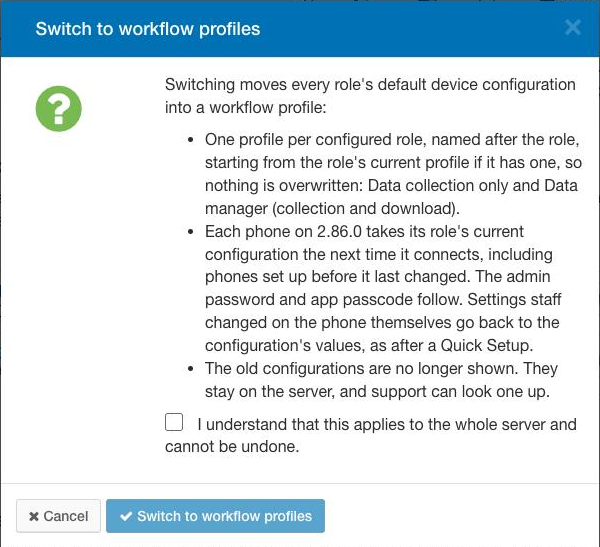
The switch dialog lists the roles that will get a profile. Click the image to enlarge it.
What the switch does
One workflow profile per configured user role. Every role with a deployed default device configuration gets a workflow profile named after the role, holding the configuration's device settings, forms, cases, and instructions in its Device settings and Setup sections. If the role already had a profile (a web workflow profile, for example), the new profile starts as a copy of it, so nothing is overwritten. Roles without a default device configuration get no profile.
Drafts of default device configurations aren't carried over. Only a role's saved configuration goes into its workflow profile. A role whose configuration is only a draft that has never been saved gets no profile, and a draft's unsaved changes to forms, cases, or instructions are left out. Save any draft configuration you want to keep before you switch. Drafts stay on the server, hidden, like the old default device configurations.
The old default device configurations are no longer shown. They stay on the server, and the SurveyCTO Support team can look one up if you need it. No new device configuration can be created.
The Collect tab changes. The page reloads with the Workflow profiles card at the top, noting when the server switched and who switched it. From then on, you edit each role's device settings and setup in its workflow profile instead. See creating and editing workflow profiles.
It applies to the whole server and cannot be undone.
Mobile devices after the switch
Devices on Collect 2.86 or later take the device settings of their role's workflow profile (copied from its default device configuration) the next time they connect to the server, including devices set up before the configuration last changed. The admin password and app passcode follow. Settings end users changed on their devices are overwritten by the profile's values, as after a quick setup.
Devices on older versions are untouched until they are set up again with quick setup. At their next quick setup, they get their role's profile settings, as a device configuration would have given them.
To make sure every device follows its profile, you can require Collect 2.86 under Enforce minimum app version. See requiring Collect 2.86.
Deleting the last default device configuration
When you delete the last default device configuration, the server console offers the option to switch to workflow profiles, but never switches by itself: you can still create new configurations, or choose to switch.
If a user role is flagged after a console update
If your server runs an older console version after switching (for example, if SurveyCTO rolls back an update), and a default device configuration receives device settings during that time, the Workflow profiles card flags it as soon as the server is on 2.86 or later again: “The default device configuration of role has settings received on date, while this console was on an older version.” Click Copy them into the profile (or Create a profile from them, for a role without one) to bring those settings into the role's profile. Only an administrator who can edit that profile sees the flag.