Automatic AI processing
SurveyCTO's AI transcription and translation feature lets you transcribe any audio field or audio audit and translate transcripts or text responses into the language of your choice. Results are saved as comments in their respective fields, which are viewable in Data Explorer and in their own column when data is exported. Your original answers and submission approval status remain unchanged.
You can translate and transcribe data in the following ways:
Manually inside the single submission view of the Data Explorer (see AI transcription and translation)
Automatically for new incoming submissions (this article)
In bulk for existing submissions (see Bulk AI processing)
In bulk for new and existing submissions using our API (see our developer portal)
Automatic processing for AI transcription and translation is useful when:
You want to automatically transcribe or translate new incoming submissions from one form, from all forms within a team, or for all forms in a server.
In order to use AI features, a user's role must have Can use AI features enabled. Specifically, translating and transcribing per form requires Can use AI features for that form. Changing a form's automatic processing setting also requires Can edit forms. The server-wide controls and Your teams section require full administrator access. See managing user roles.
Setting up automatic processing for new submissions in a form
Use the Design tab to enable automatic translation and transcription for incoming submissions per form:
Find your form under Your forms and datasets. Expand its group if the forms are hidden.
In that form's toolbar, click Translations & Transcriptions. The automatic-processing panel opens below the row.

Find the form on Design, then use its Translations & Transcriptions button (1). The enlarged detail shows the button within the form's toolbar. Click the image to enlarge it.
Turn on Automatically translate and/or transcribe new submissions.
Under Action, choose Transcribe, Translate, or Translate and Transcribe. The available actions depend on the form's text and audio fields.
For translation, choose a target language. With Translate and Transcribe, select Translate transcribed audio if you also want the new transcripts translated. Review Skip submissions already translated into the target language.
Click Save settings. To discard your changes, click Cancel.
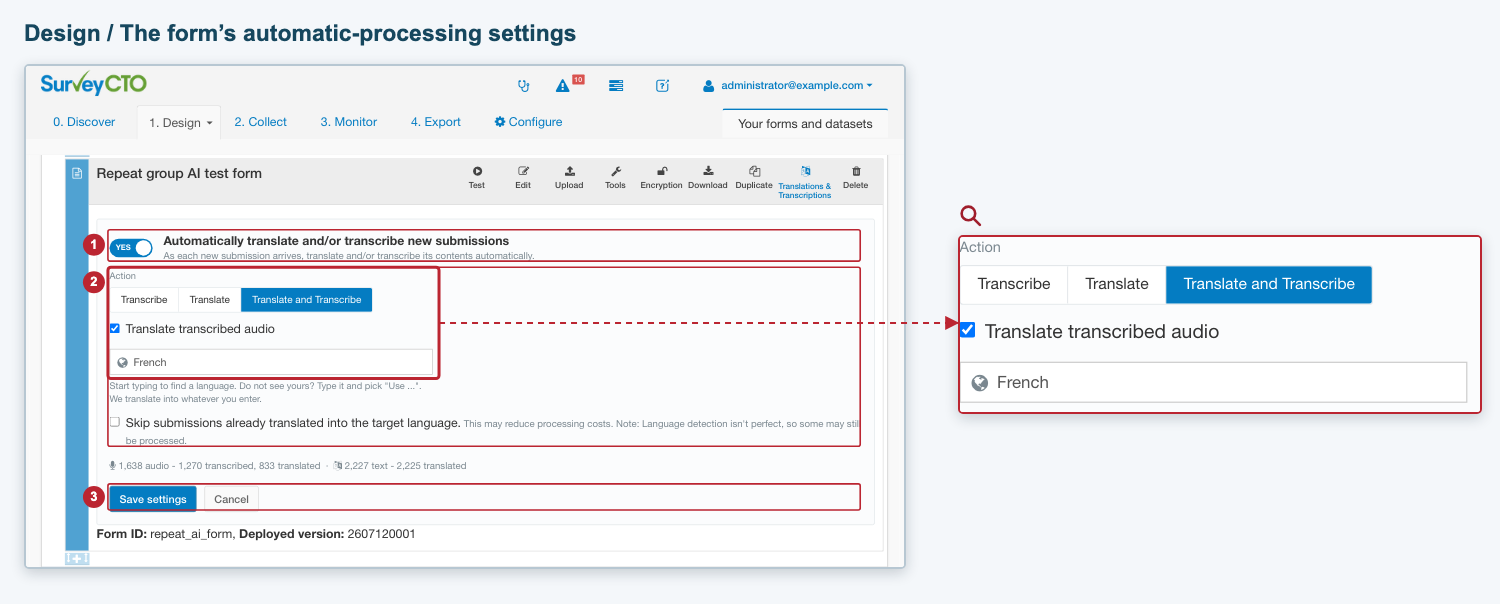
1. Turn automatic processing on or off. 2. Choose the action and translation options. 3. Save settings or cancel your changes. Click the image to enlarge it.
Saving here sets up automatic processing for this form, which takes precedence over any settings made on the team and server level. To stop automatic processing for the form, turn the switch off and click Save settings. This explicit off also prevents the form from inheriting automatic processing from its team or server. See which setting applies.
These settings govern new submissions. To process submissions already collected, open the form's Translations & Transcriptions panel on Monitor and choose Process existing data. See the bulk processing wizard.
If the control is unavailable, check that your role has the required permissions. Encrypted forms show a disabled AI control because automatic processing cannot read their content.
AI tools on the Configure tab
Open the Configure tab, find the Server settings section, and click AI tools. Three buttons appear below it. Click a button to open its panel:
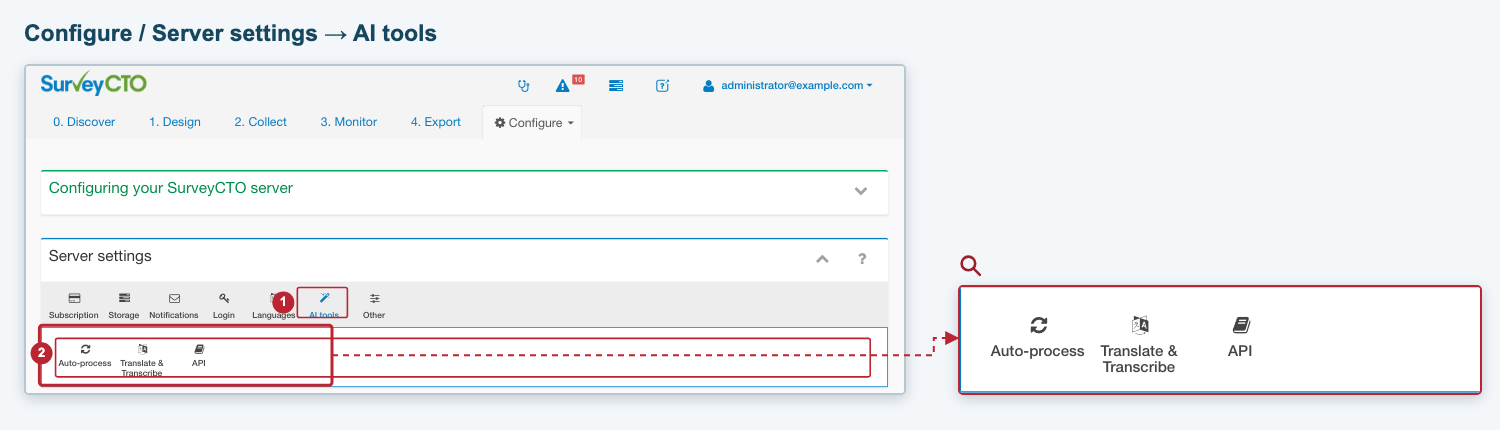
1. Open AI tools. 2. Choose the panel for the work you want to do. Click the image to enlarge it.
| Button | What you can do |
|---|---|
| Auto-process | Set the server default for processing new submissions. Choose the action and language, then click Save server setting. Use Manage form opt-outs in this panel to exclude individual forms. See automatic processing and leaving forms out. |
| Translate & Transcribe | Click Translate / Transcribe... to start the wizard for existing data. The same panel shows progress and Past server-wide runs, with controls to pause, resume or cancel runs. See processing across the server. |
| API | Click Go to developer portal to open the AI transcription and translation developer guide. |
To configure team defaults, find the team under Your teams on the Configure tab and click Edit. Its automatic-processing controls appear within the team editor. Click Save in that editor to save changes to the team's setting.
Setting up automatic processing for new submissions
Use the Configure tab to enable automatic translation and transcription for incoming submissions for the whole server or for all forms within a particular team(s).
Team: edit the team under Configure > Your teams. For a new team, save it first, then open its Edit panel.
Server: use Configure > Server settings > AI tools > Auto-process.
Enable the setting beginning Automatically translate and/or transcribe new submissions. Use the Action selector to choose Transcribe, Translate or Translate and Transcribe. With Translate and Transcribe, you can select Translate transcribed audio. For translation, choose a language and review Skip submissions already translated into the target language.
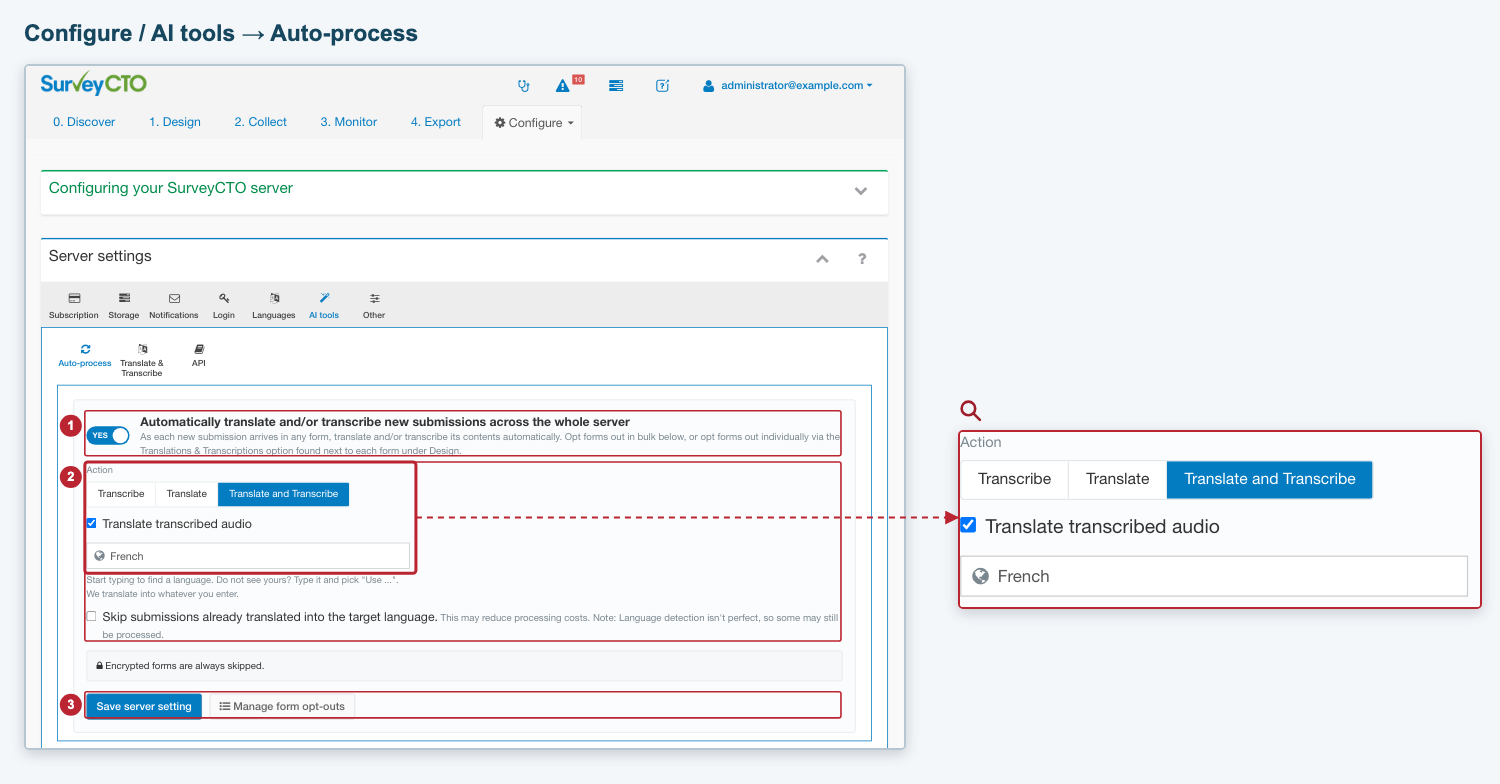
1. Enable automatic processing. 2. Choose the action. 3. Save the setting or manage form opt-outs. Click the image to enlarge it.
Click Save settings for a form, Save in the team editor, or Save server setting for the server. To turn automatic processing off at that level, turn its switch off and use the same save button. Check the precedence rules below before changing a team or server default.
Which setting applies?
A form's own setting takes precedence over its team's setting, which takes precedence over the server setting. The selected setting is used in full, including its action and language. An explicit off also takes precedence: switching a form off blocks automatic processing inherited from its team or server.
The form panel shows which setting applies to that form. Team and server panels show the settings saved at those levels. A team with no setting of its own can still inherit the server setting.
Leaving forms out
To manage opt-outs across the server:
Open the Configure tab and find Server settings.
Click AI tools, then Auto-process.
Click Manage form opt-outs, beside Save server setting. The button is enabled while the server automatic-processing switch is on.
In the dialog, find the form by name or ID using Search forms, then turn its switch off to exclude it or on to restore it. Each change is saved immediately. Click Done to close the dialog.
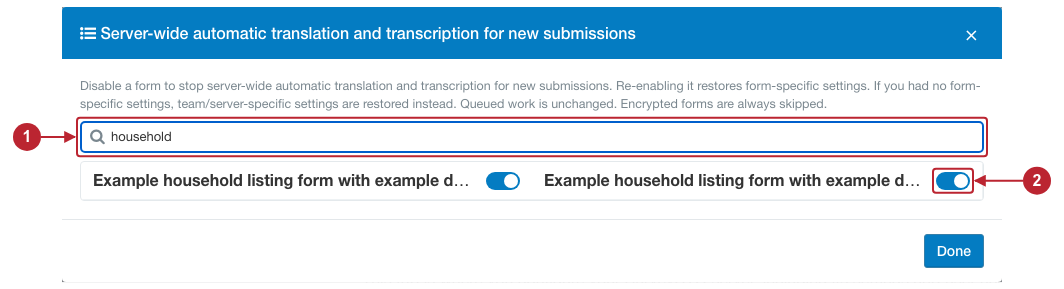
1. Search by form name or ID. 2. Change a form's switch to allow or prevent automatic processing. Click the image to enlarge it.
To manage only a team's forms, open Configure, find the team under Your teams, and click Edit. In the section headed Automatically translate and/or transcribe new submissions for every form in this team, click Manage form opt-outs. This button is enabled while the team's automatic-processing switch is on. Search for a form, change its switch, then click Done. Each opt-out change is saved immediately.
Encrypted forms are marked in the list and their switches are disabled because automatic processing cannot read their contents.
Switching a form off prevents automatic processing, even when it is enabled for the team or server. Switching it back on restores its previous setting, or allows it to inherit when it had no setting of its own. Changes affect future automatic processing; they do not cancel work already queued.
When processing starts
A submission becomes eligible after it finishes uploading, including its attachments. Processing happens in the background. Backlogs, server load, provider availability and funding can delay it; there is no fixed completion time.
Submissions awaiting approval are eligible for automatic processing. Submissions already rejected when checked for automatic processing are skipped. Rejecting a submission does not cancel processing already queued.
Choosing a language
Choose a language from the list, or enter a language that is not listed. To use an unlisted language, type its name and select Use "...".
Checking results and progress
On the Monitor tab, open the form's Translations & Transcriptions panel to see activity, failures and funding messages. Review saved results in the Data Explorer. See monitoring and controlling work for pause, cancellation and retry controls.
Switching automatic processing off affects future work. To stop work already waiting, also use the form panel's controls. Work already sent to the provider can finish and use credits.
For the content these settings cover, including repeats and encrypted forms, see what can be processed. For funding interruptions, see funding and pauses.