Bulk AI processing
SurveyCTO's AI transcription and translation feature lets you transcribe any audio field or audio audit, and translate transcripts or text responses into the language of your choice. Results are saved as comments in their respective fields, which are viewable in Data Explorer and in their own column when data is exported. Your original answers and submission approval status remain unchanged.
You can translate and transcribe data in the following ways:
Manually inside the single submission view of the Data Explorer (see AI transcription and translation)
Automatically for new incoming submissions (see Automatic AI processing)
In bulk for existing submissions (this article)
In bulk for new and existing submissions using our API (see our developer portal)
Bulk processing for AI transcription and translation is useful when:
You want to transcribe or translate large amounts of collected data at once.
You want to use transcribed or translated data in quality assurance, data analysis, or process improvement workflows.
Finding the controls
There are multiple ways for you to translate and transcribe existing submissions in bulk:
Process existing data in a form: on Monitor, open the form's Translations & Transcriptions panel and choose Process existing data.
Process existing data across the server: on Configure, open Server settings > AI tools. Choose Translate & Transcribe.
Process data in bulk via API: using our API allows you to translate and transcribe both new and existing submissions in bulk. See our developer guide for instructions.
In order to use AI features, a user's role must have Can use AI features enabled (on by default). Specifically, translating and transcribing per form requires Can use AI features for that form. Changing a form's automatic processing setting also requires Can edit forms. The server-wide controls require full administrator access. See managing user roles.
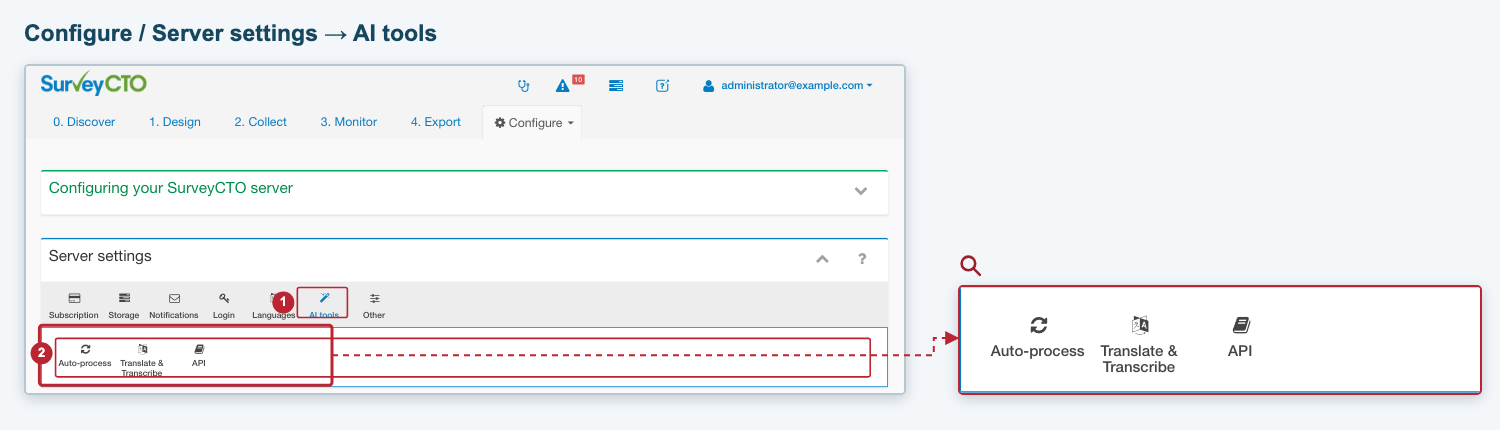
1. Open AI tools. 2. Choose Translate & Transcribe for existing data, Auto-process for new submissions, or API for the developer guide. Click the image to enlarge it.
Processing existing data in a form
On the Monitor tab, find your form, open Translations & Transcriptions, and click Process existing data. The wizard that appears has three steps. You can go back to change your choices before you click Confirm & run.
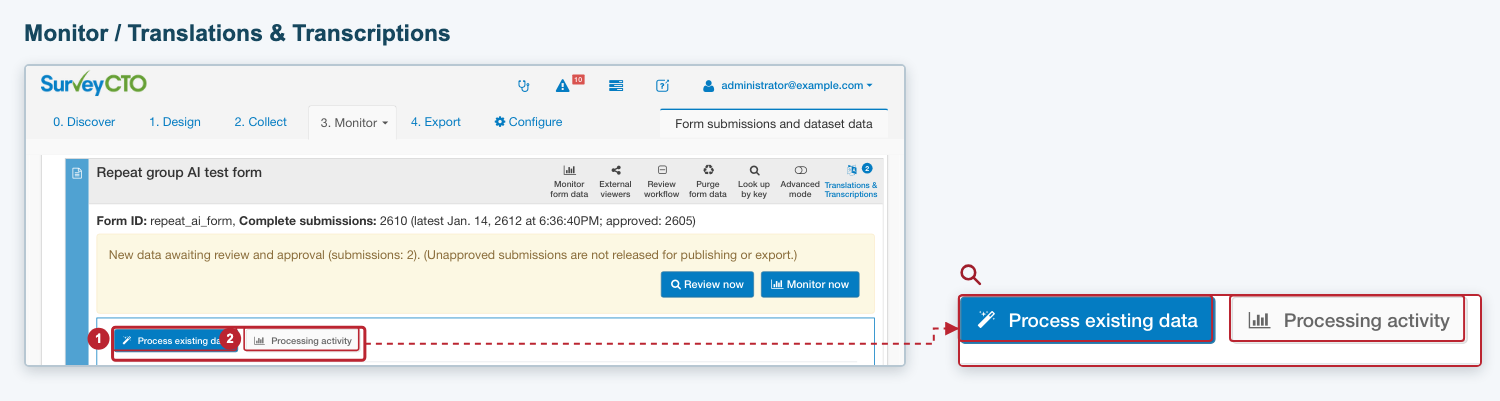
1. Open the wizard. 2. View processing activity for the form. Click the image to enlarge it.
Step 1: Choose what to do
Select Translate, Transcribe, or both, then click Next:
Translate: translate text fields or saved audio transcripts into the target language. Choose the language here; you will choose which content to translate in the next step.
Transcribe: turn audio recordings into text. This option appears for forms with audio fields or audio audits.
Both: transcribe recordings and translate the resulting transcripts. You can also translate text answers.
Note: To translate saved transcripts without requesting new transcriptions, select Translate here and Transcribed audio in the next step. See choosing a language if your language is not listed.
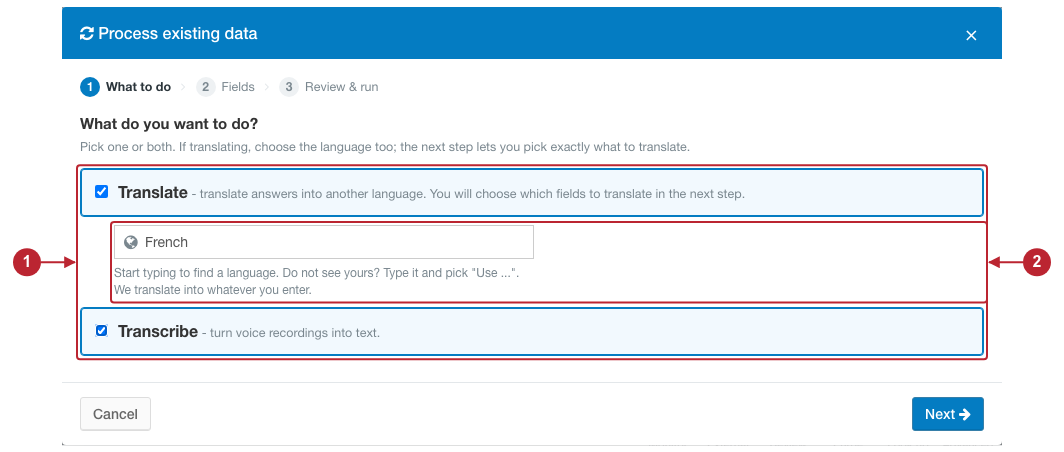
1. Select the actions. 2. Choose the target language when translating. Click the image to enlarge it.
Step 2: Choose the fields
When both text and audio are available for translation, What to translate? lets you select Text answers, Transcribed audio, or both. If you also selected Transcribe in step 1, the audio option includes transcripts created in this run.
Under Which fields?, choose All fields to include every applicable field for the selected actions, or Pick specific fields to choose them individually.
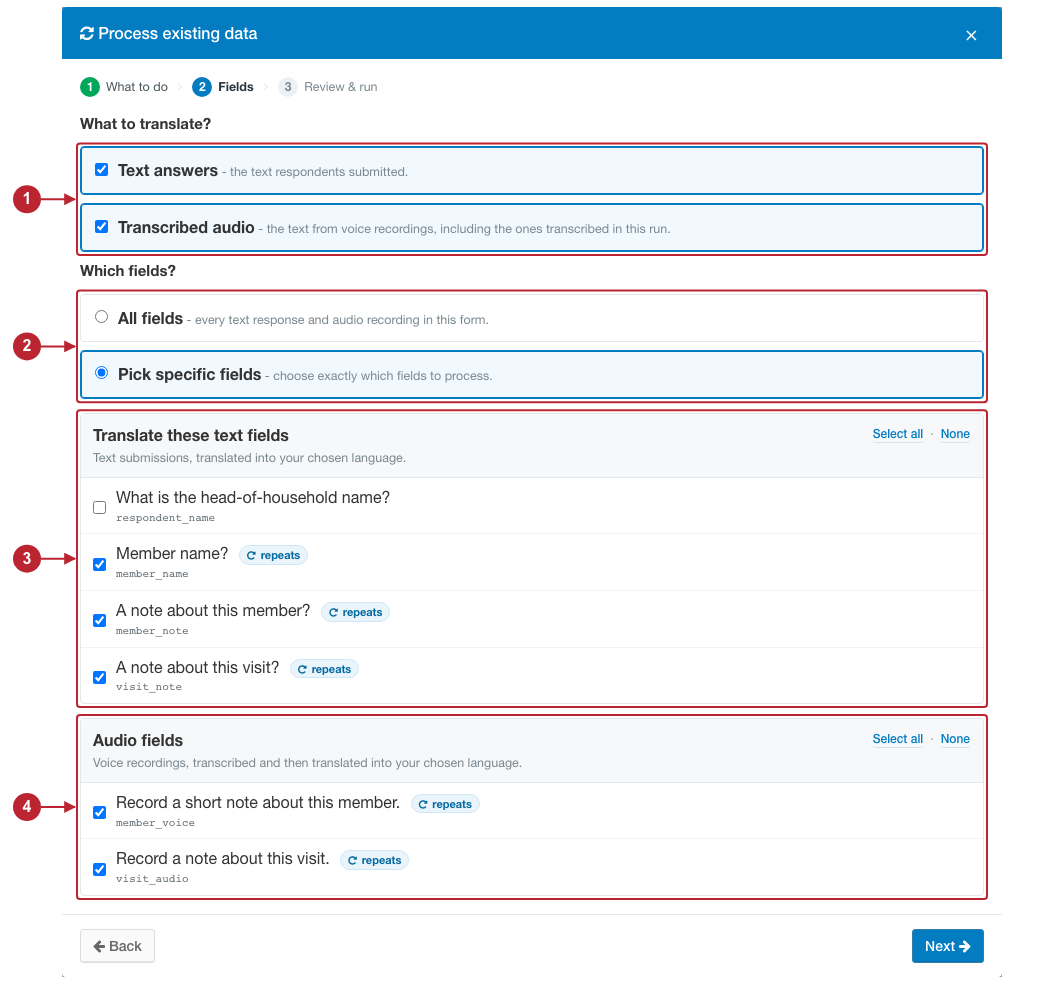
1. Choose what to translate. 2. Choose all or specific fields. 3. Select text fields. 4. Select audio fields. Click the image to enlarge it.
The field picker lists each field's label and name. Select the checkboxes for the fields you want. Use Select all or None within the text or audio section to change that section's selection. You must select eligible content before continuing.
A repeats badge means the field is inside a repeat group. Each submitted answer or recording in that repeat group is processed separately, so one selected field can produce several results per submission and use more credits. In the example above, the respondent_name field is left out while notes and recordings are selected.
Text fields can also contain codes, IDs, names, and other content which won't make sense to translate. Leave those fields unchecked. See what can be processed for the full inclusion rules. Click Next when your selection is ready.
Step 3: Review the work
The Review & run step checks the submissions, actions, cost and approximate processing time before starting.
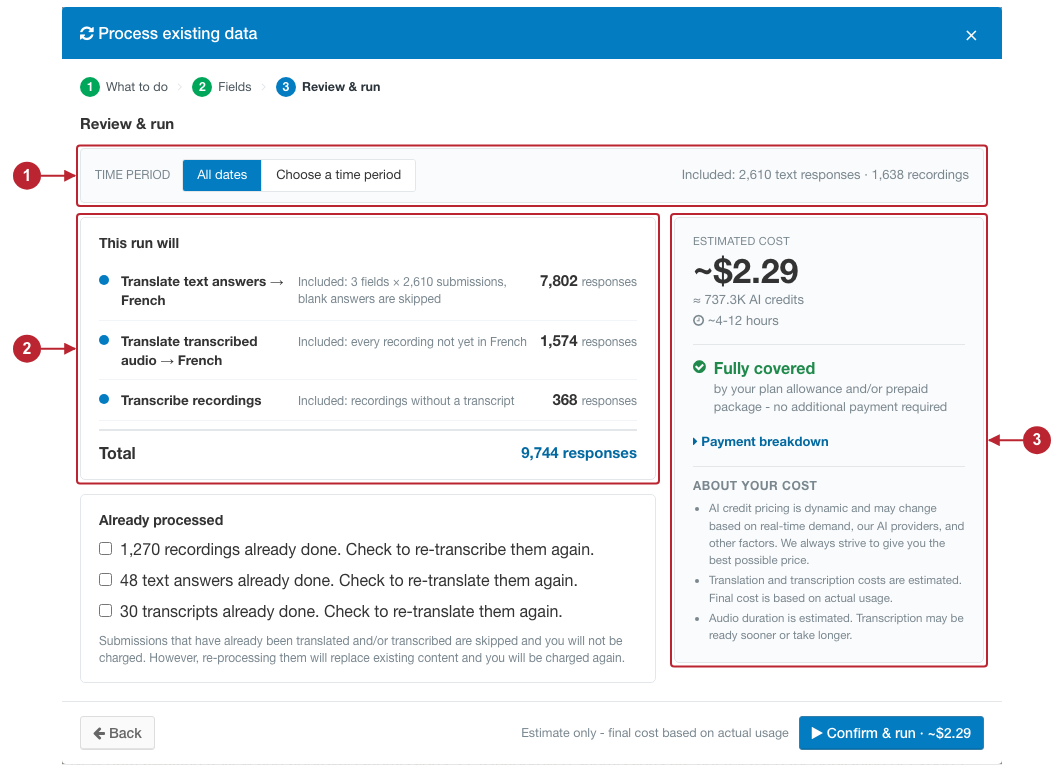
1. Limit the submissions by date. 2. Check the work included. 3. Review the cost, processing time and available funding. Figures shown are examples. Click the image to enlarge it.
This example run separates text translation, transcript translation, and audio transcription. A submission can contain several selected fields and repeat answers; transcribing a recording and translating its transcript are separate actions. The total response count therefore may not equal the number of submissions.
Limiting the submissions by date
Select All dates to process submissions across all dates, or select Choose a time period to process submissions across a specific timeframe. Enter From and To, or select up to now to include all submissions up to the current time period. Dates and times use your browser's local time zone and filter by the submission's completion time, rather than its upload time.
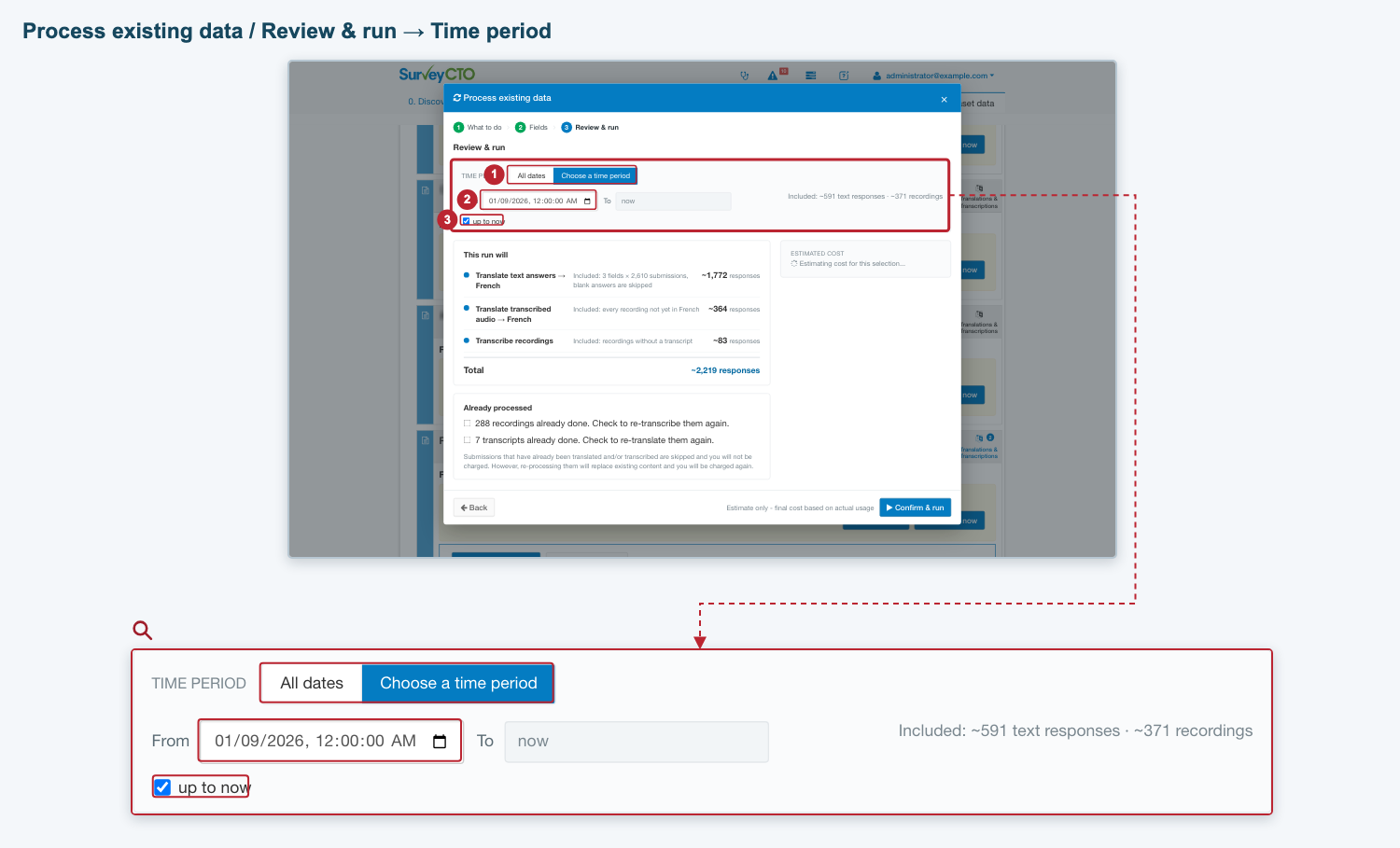
1. Choose a time period. 2. Enter the start. 3. Keep up to now selected, or clear it to enter an end date. Click the image to enlarge it.
The start is included and the end is excluded. For example, to include a full day, use midnight at the start of that day through midnight at the start of the next day. Wait for the preview to update after changing the time period, then review the counts and estimate again.
Including results already processed
Existing matching results are skipped by default. When the selection contains completed work, Already processed offers options for you to repeat translation or transcription efforts. Select only the types you want to repeat.
Note: Re-translating fields will translate them to the target language you selected in the wizard.
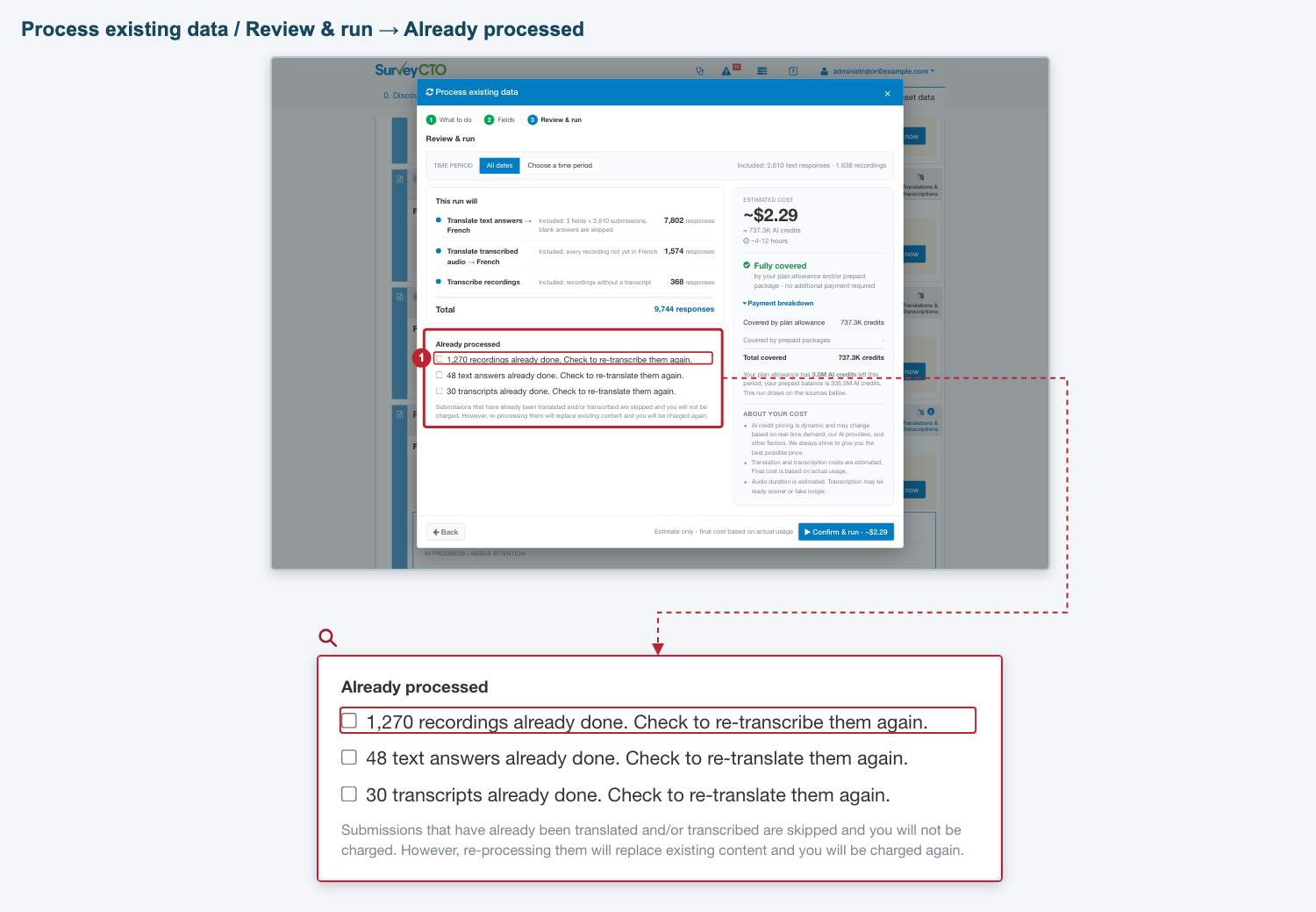
Select a checkbox only when you want that type of work repeated. The counts shown are examples. Click the image to enlarge it.
If the wizard says No processing available for this time period, check your fields, language and date range. Applicable submissions during this time period may already be translated or transcribed. You can use a reprocessing option if you want to replace existing results.
What can be processed
Text translation covers respondent text inputs, including answers within repeats. Blank answers are skipped. Notes, choice labels, calculated or preloaded values, and submission metadata are not included as respondent text inputs. Select audio fields or audio audits for transcription; you can also translate transcripts.
Text values or transcripts longer than 65,000 characters cannot be translated by bulk processing. These are listed as permanent failures, so you can identify the affected submissions. Encrypted forms are skipped because their content cannot be decrypted on the server. You can process encrypted submissions individually in the Data Explorer, but encrypted submissions are otherwise skipped in bulk processing.
Checking results and progress
On the Monitor tab, open the form's Translations & Transcriptions panel to see activity, failures and funding messages. Review saved results in the Data Explorer. See monitoring and controlling work for pause, cancellation, and retry controls.
Switching automatic processing off affects future work. To stop work already waiting, also use the form panel's controls. Work already submitted can finish and use credits.
For the content these settings cover, including repeats and encrypted forms, see what can be processed. For funding interruptions, see funding and pauses.
Understanding cost and time estimates
The review step shows Estimated cost in U.S. dollars and AI credits when pricing is available. The clock icon below the credits shows an approximate processing time range. Expand Payment breakdown to see how the estimate would be covered.
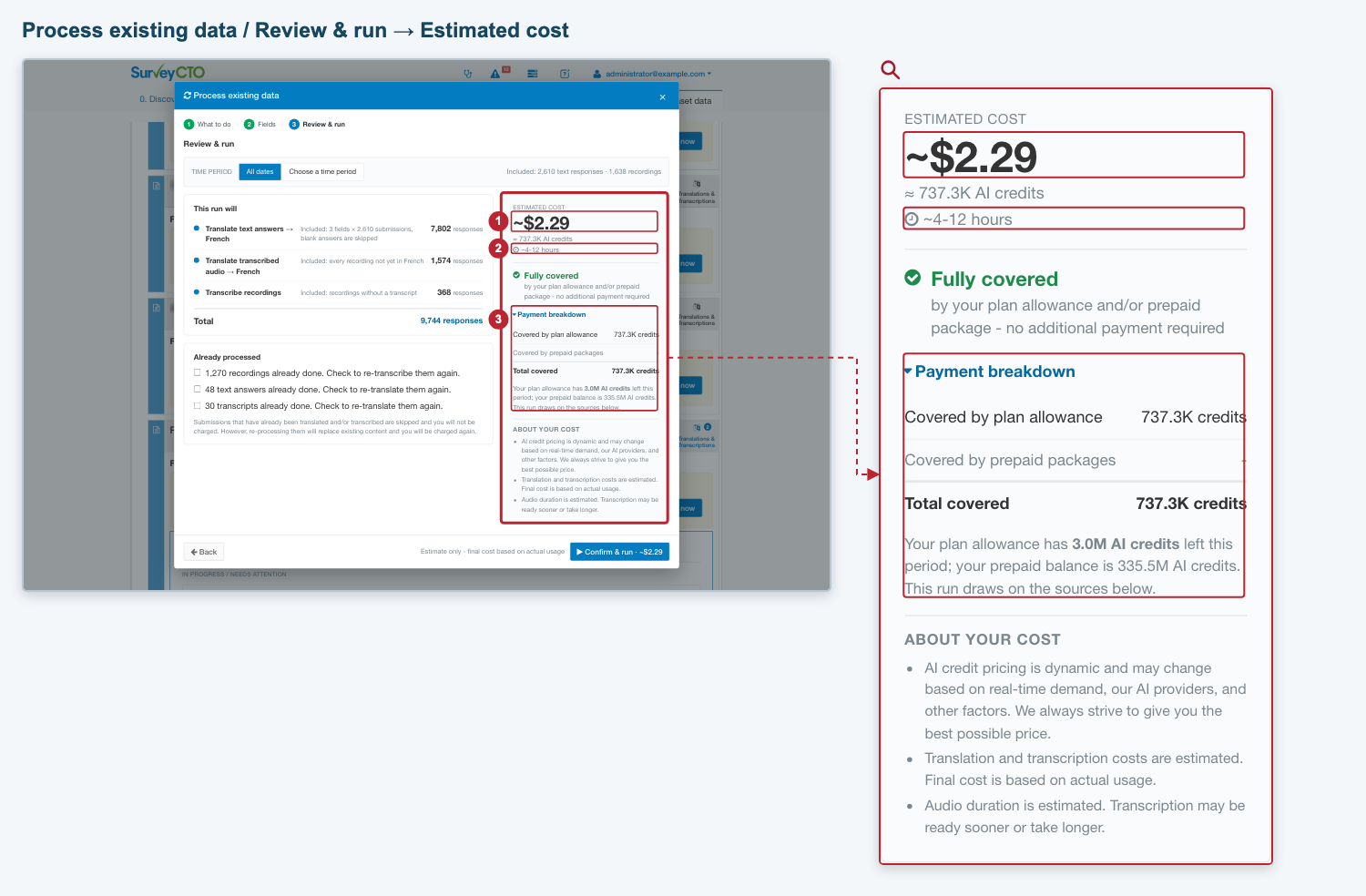
1. Estimated cost. 2. Approximate processing time. 3. Estimated funding split. Prices, balances and times shown are examples. Click the image to enlarge it.
Cost and available funding
The cost reflects the work selected, including the actions, fields, date range and reprocessing choices. It is an estimate of AI usage, not necessarily actual cost. The payment breakdown shows the available AI credits in your remaining plan allowance first, then prepaid credits, then available on-demand funding.
Fully covered: the available funding covers the estimate. Check the breakdown to see whether this includes on-demand usage, which is billed as you go.
Credits short: the estimated cost exceeds available funding. You can still submit the run. Work waits for additional funding as needed; you can buy a prepaid package or review your on-demand settings.
Estimate unavailable: there is no reliable price for the current selection. You can still start processing, and actual usage uses credits. If the preview covers only part of the submissions, read the accompanying message; that preview does not limit the work included in the run.
If balances cannot be read, the wizard cannot show a reliable cost and credit usage breakdown. Check the Usage menu icon in your server console before starting a large run. An All-audio reference only amount, when shown for a server-wide run, is a reference for the audio set; it does not show that your balance covers the selected work.
Actual cost depends on the content processed and the pricing in effect when it is processed. Available balances can also change. Review About your cost in the wizard and AI credits and usage.
How long will processing take?
The time range reflects the selected translation work and the estimated amount of audio to transcribe. Changing the selected fields, date range or reprocessing options can change it. Audio duration is itself estimated.
Use this range for planning. It is not a scheduled start time or a guaranteed completion time, as many factors influence time to completion. You can leave the page after starting a run and return to check progress.
Starting the run
When you are satisfied with the selection and estimate, click Confirm & run to complete the wizard and proceed with the bulk AI processing task. The amount on the button is the estimate; final cost and usage is based on the work actually processed. The run continues in the background and saves its results automatically as field comments. Open the form's Translations & Transcriptions panel on Monitor to follow it.
Process existing data across the server
On the Configure tab, find Server settings and click AI tools, then Translate & Transcribe. In the panel that opens, click Translate / Transcribe... to start the wizard. Choose the work, then use step 2, Choose the forms, to select the forms. Selecting All on and All off helps you update the form selection. Review the scope and estimate before starting.
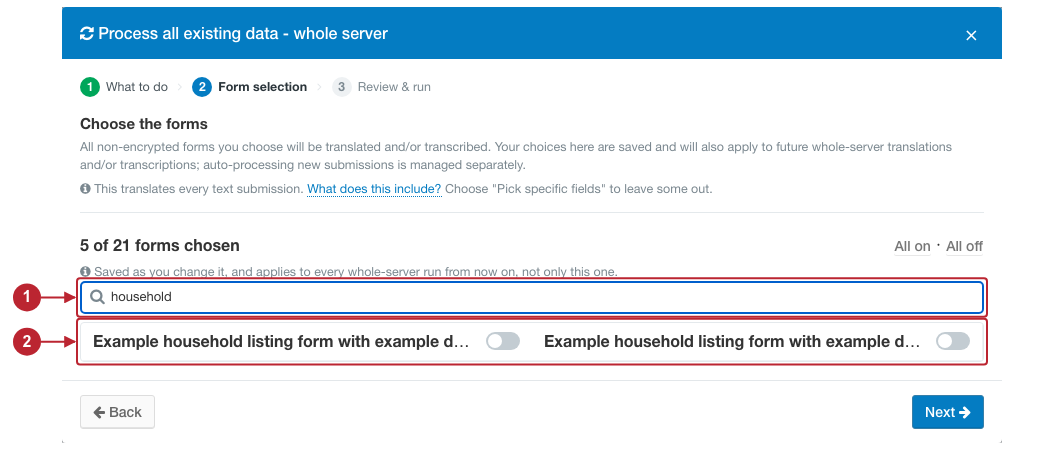
1. Search for a form. 2. Review the selection and use the form switches or All on / All off to change it. Click the image to enlarge it.
Form-selection changes are saved as you make them, including if you close the wizard before starting a run. Review the chosen-form count before continuing. Encrypted forms cannot be selected for bulk processing, they can only be processed individually in Data Explorer. (See AI translation and transcription).
Server-wide runs use eligible fields across the selected forms. To select individual fields, start a run from a form's Monitor panel.
The saved form selection excludes forms you switch off. Newly added forms are included by default in future server-wide runs. To also stop processing a form's new submissions, update its automatic processing opt-out.
To return to a run, open Configure > Server settings > AI tools > Translate & Transcribe and find Past server-wide runs. Check progress or use Pause, Resume and Cancel run there. Runs continue in the background when you leave the page.