Workflow profiles in SurveyCTO Collect
When a user's role has a workflow profile, SurveyCTO Collect shows a customized experience defined in the profile: where the app opens, the main screen's actions, tiles and words, your organization's colors and logo, and what happens while end users fill a form and after they finish it. This page describes what end users see. To set it up, see creating and editing workflow profiles.
Collect for Android and Collect for iOS show the same content, each in its own look, on phones and tablets alike. Users whose role has no workflow profile see the default Collect experience.
Workflow profiles need SurveyCTO Collect 2.86 or later, which requires devices themselves to run on Android 8.0 or later, or iOS 15 or later. Older versions of Collect can't use the full workflow profiles feature: they get only the profile's device settings and setup, when they are set up.
A mobile device picks up a change to its profile the next time it connects to the server, for example when it gets forms or sends data.
Where Collect opens (landing place)
You can customize a workflow profile’s landing place so that end users get a specific experience when they open the Collect app. Collect can open on the main menu, on the case list, or on one form.
If the landing place is set to One form, Collect opens that form when the app starts and right after setup. When users leave the form, they are brought to the main menu.
If the landing place is set to The case list, Collect brings users to the case list instead of the main menu when the app starts and right after setup. Users return to the case list when they leave a form they opened from it.
The main screen in Collect
The main screen can show:
Your organization's logo, greeting, and subtitle at the top. A greeting or subtitle left blank shows Collect's usual text.
The standard actions (Manage Cases, Fill Blank Form, Edit Saved Form, Send Finalized Form, Get Blank Form and Delete Saved Form), in the app's usual order, with the names the profile gives them. For example, instead of Manage Cases, users might see “My households · 12 assigned”. Which actions show still comes from the device settings.
An assigned count on Manage Cases: the number of cases in the case list that are assigned to the user by name. Cases open to the whole user role or to everyone are not counted, and when none are assigned, no count shows.
Your own tiles, after the standard actions. This includes tiles that open a form (“Start a listing”) or a web page in the device's browser (“Field manual”), and a tile for your organization's page.
Get help, which opens a menu list with your organization's phone number, email address, and web page. Tapping an option starts a call or a new email, or opens the page in the browser.
When forms or form packages are waiting to install, Collect's own prompts (Install Form Updates, and Install Form Packages on Android) still come first.
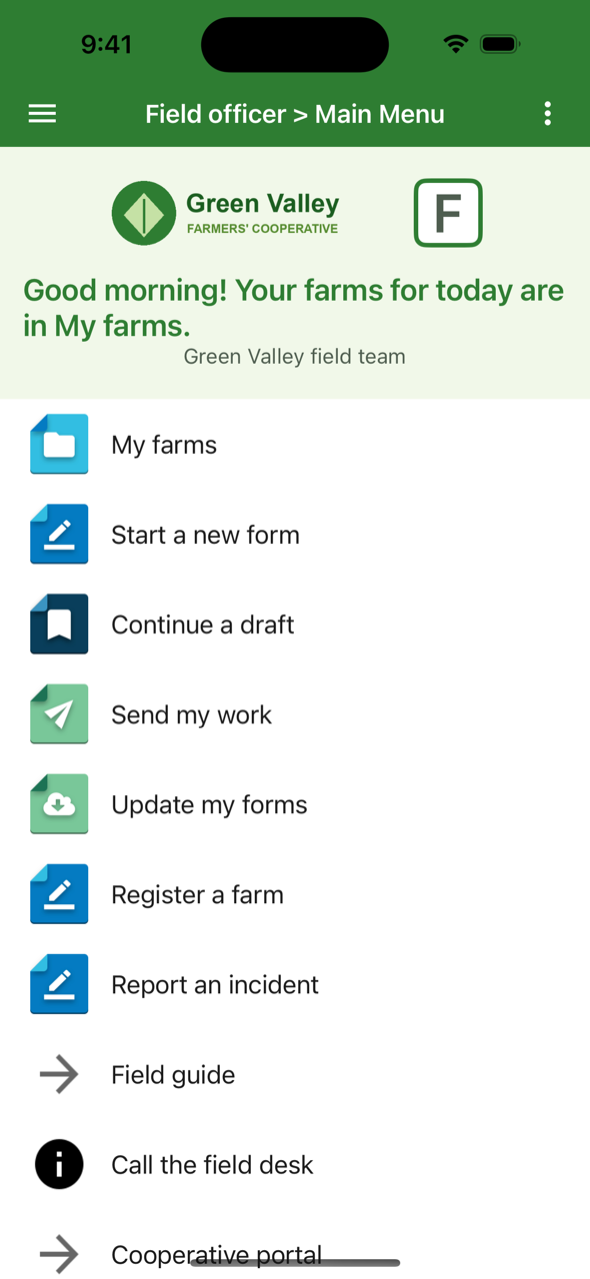
The main screen with a workflow profile attached to a user role.
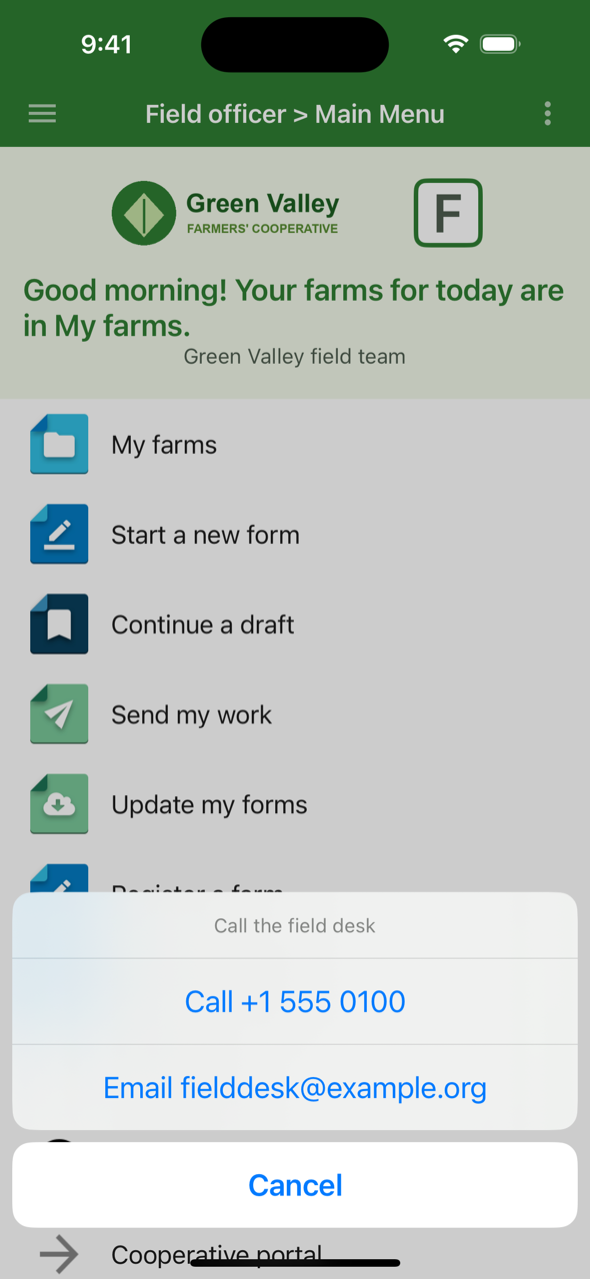
The Get help menu list.
The case list
A workflow profile can rename cases based on your organization's terminology. It replaces “Manage Cases” in the case list's title (“Households”), the filter (“Only households with:”), and the message shown when no cases are on the device. When a filter hides every case, the message keeps Collect's default language.
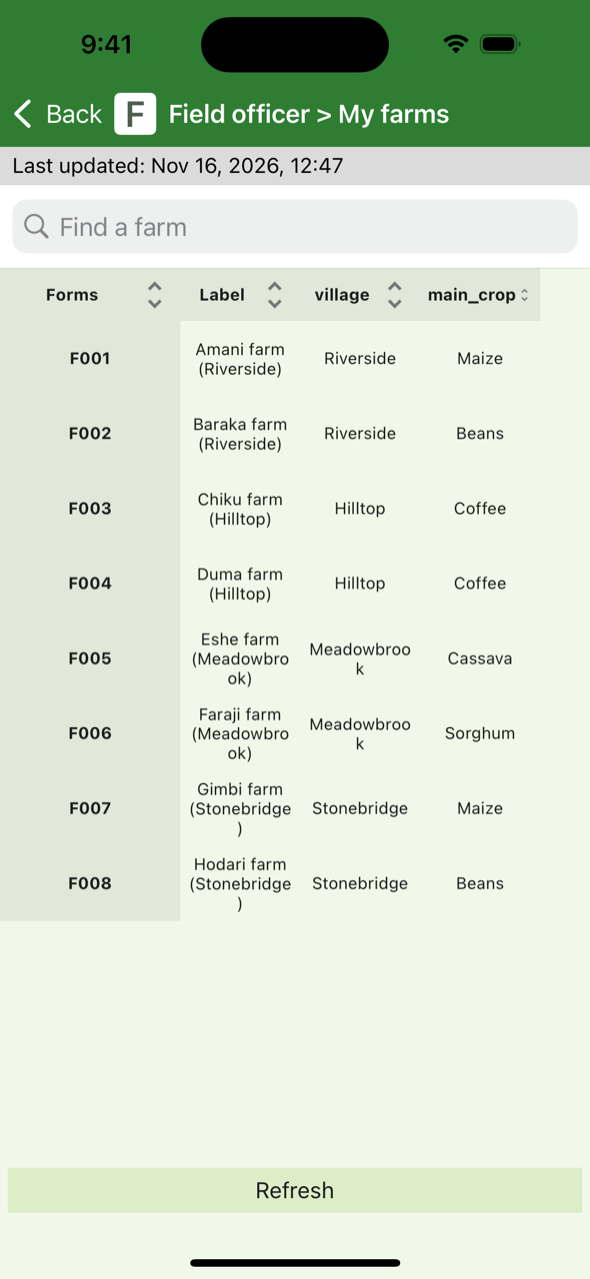
The case list, in the organization's words and colors.
Filling a form
The welcome screen can be skipped, so a form opens on its first question.
The Save action can have your organization's terminology, for example “Save for later”. On Android it shows in the form's menu; on iOS, Save is an icon, and the word is its name for VoiceOver.
Quick forms. The profile's pinned forms are in the form's menu, under Quick forms, as on the web. Only the deployed forms the user's role can see are listed. Opening a pinned form saves the current form as a draft (“Household listing saved as a draft”). Once end users finalize or save the pinned form, the form they left reopens at the same question (“Back to Household listing”).
Empty lists. Edit Saved Form and Delete Saved Form show the profile's message when there are no saved forms.
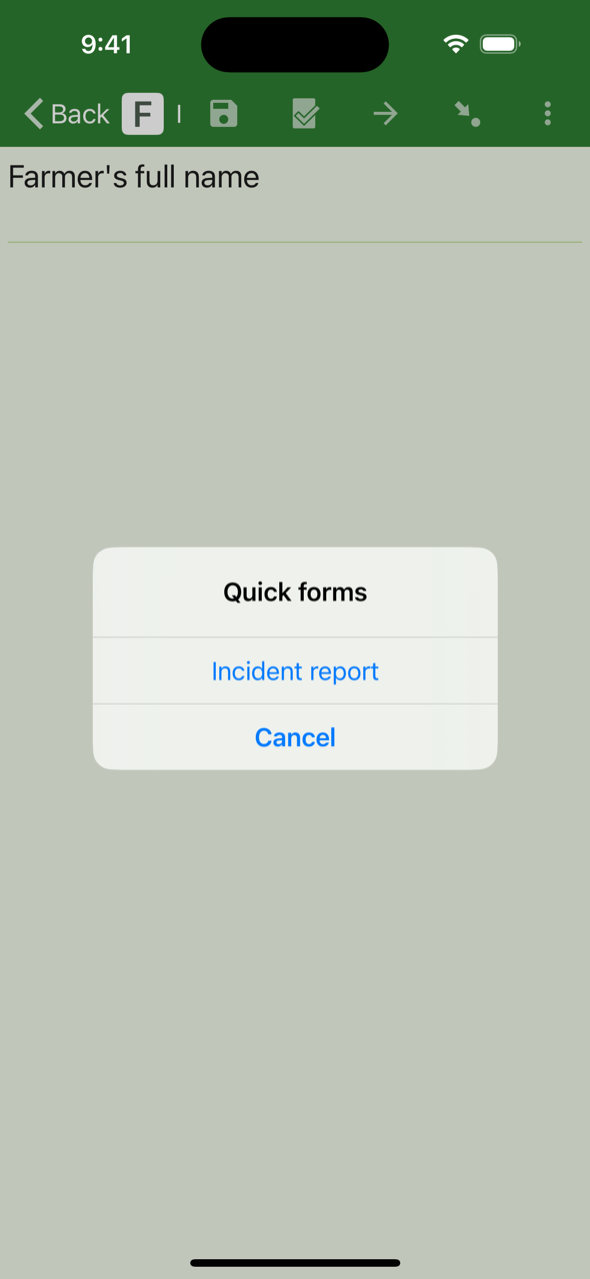
Quick forms, from the form's menu.
Finishing a form
Finalizing automatically. If the profile finalizes each form as soon as it is finished, the form skips the end screen and is saved as finalized. The finalized form is not sent to the server by itself: the device's own sending settings decide whether and when data is sent to the server. Note: if a constraint fails (that is, if an answer is invalid), end users go back to that question before the form can finalize automatically.
Hidden form name and finalize box. The profile can hide both the form name and the “Mark form as finalized” box on the end screen. When the device settings are set to hide one of them, it stays hidden regardless of what the workflow profile specifies. A form whose finalize box the profile hides is saved as finalized.
What opens next. Once a form is finalized, end users see the form's own thank-you note if it has one, then the next form or web page the profile has set. A form saved as a draft doesn't move on.
If the next form, a pinned form, or a tile's form isn't on the device yet, Collect will say so, naming the form by its ID (or by the tile's name). For example, Collect will state “listing isn't on your phone yet”, and offer the option to Get it now, which downloads just that form.
Colors
Colors that an administrator has applied to a workflow profile apply to every screen:
| Color | Where devices use it |
|---|---|
| Background | Screens behind tiles, rows and cards, the main screen's header, and forms behind their questions |
| Surface | Tiles, list and settings rows, the drawer and the end screen's card |
| Primary | Filled main buttons (with white text), the main screen's greeting, and accents |
| Secondary button | Grey buttons, such as a form's Back and Next, with Text on them |
| Text, Secondary text | Main text, and muted text such as subtitles and hints |
| Border | Separators, field borders and dividers |
| Link | Links in questions, hints and the app's text |
| Top bar background, Top bar text | Every screen's top bar |
| Danger | The delete button, with white text |
Colors that carry a meaning keep it. For example, text a form colors itself, required-field red and status colors stay as they are, and icons keep their own colors. On a dark Surface, some icons can be hard to see, so prefer a light surface.
Cells in the case table have no color of their own: they show the Background color, and the header row and first column take a light tint of it.
As of v2.86, the app's own dialog boxes keep Collect's default colors.
Readability is up to the administrator. The editor warns about using pairs of colors that may be hard to read, but it will not prevent you from using those colors.
Things to keep in mind
Very large case lists. Collect reads every case when it opens the case list. For a role with a very large case list, consider setting the main menu as the landing place, so Collect doesn't open on the case list every time it starts.
Forms reach devices as before. A profile never installs or removes a form, so drafts and partly filled forms are safe. A tile, pinned form, or next form that isn't on the device yet offers to download it.
Device settings
A profile also carries the role's device settings, which used to come from a default device configuration. When the administrator changes them via a workflow profile, devices take those changes the next time they connect, and settings that end users changed themselves are overwritten by the profile. See device settings and setup in workflow profiles.