Device settings and setup in workflow profiles
Two sections of a workflow profile set up the devices of the profile's roles. They are included on every plan, and replace default device configurations:
Device settings: the SurveyCTO Collect settings the role's mobile devices get – including which menus show, the admin password and app passcode, sending and updating forms, and the rest of what a device configuration holds. You configure one device the way the role should work, and receive its settings.
Setup: what a device downloads, and the instructions it shows when it is set up with quick setup.
The difference from a default device configuration is what happens afterwards. A default device configuration only reaches a mobile device when the device is set up with quick setup. Device settings saved to a workflow profile also reach devices the next time they connect to the server after the profile changes, as long as they are on Collect v2.86 or later.
Receiving settings from a mobile device
On a mobile device, set up SurveyCTO Collect exactly the way the role should work: the settings in General Settings and Admin Settings, the menus to hide, an admin password, and so on. See managing device settings for what you can set.
In the server console, open the workflow profile in the editor and go to its Device settings section.
Click Receive settings from a phone…. The server now waits a few minutes for a mobile device to send its settings, with a countdown and a Cancel button.
On the device, open Admin Settings and choose Send settings to server from its menu. The device sends all its Collect settings, except its login details.
The editor shows who sent the settings and from which device, and which roles they will apply to. For example, “These settings will apply to Supervisor and Supervisor – Nairobi.” They are kept as a draft until you save the profile; click Discard them if they came from the wrong device.
Click Save now. The editor will ask you to confirm before proceeding. Devices with those roles get the new settings the next time they connect to the server.
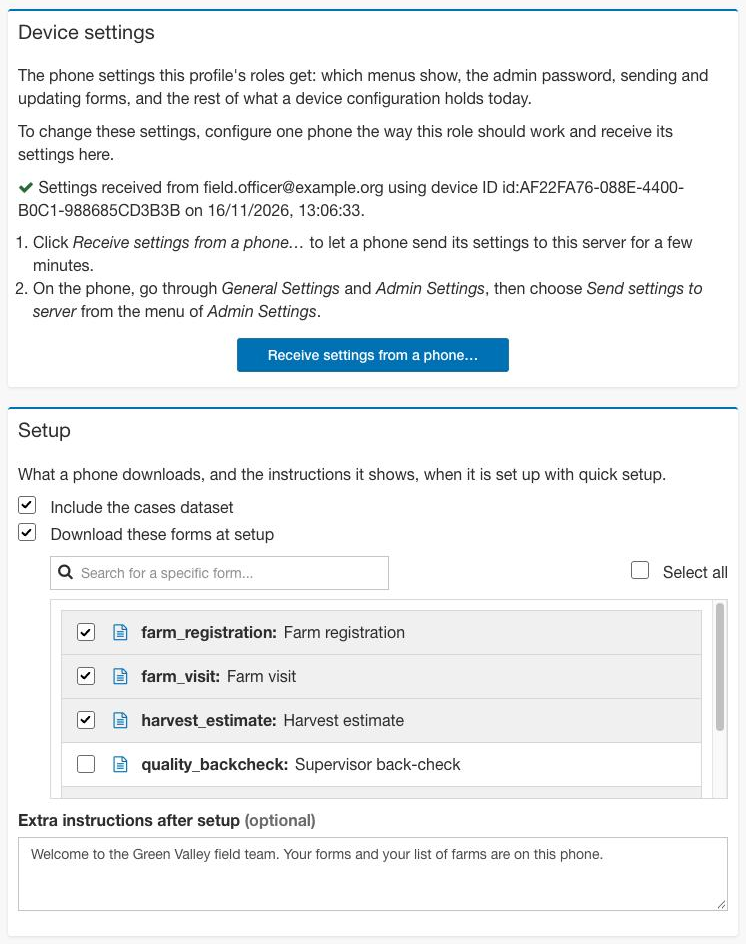
The Device settings and Setup sections of a profile. Click the image to enlarge it.
Once settings are saved, the Device settings section shows one line about them, for example “Settings received from jane@example.org using device ID SUP-04 on 26/10/2026, 14:02:15.” The specific settings themselves are not listed. To change one setting, you must change it again on the device and receive its settings again.
Received settings apply to every role that uses the profile. If several roles need different device settings, give them different profiles.
Setup
The Setup section sets what a mobile device downloads when it is set up with quick setup:
Include the cases dataset, for case management.
Download these forms at setup, with a search box and Select all.
Extra instructions after setup, shown to the person setting up the device once setup ends.
Setup applies only when a device is set up with quick setup. A workflow profile never installs or removes forms on a device outside quick setup. Devices get forms as before, through Get Blank Form or automatic form updates.
What mobile devices get, and when
| Device | What it gets, and when |
|---|---|
| Collect 2.86 or later | At quick setup: the setup and the device settings. After setup, the device gets the whole profile each time the profile changes, the next time the device connects to the server (for example when a device gets forms or sends data). |
| Collect 2.71 to 2.85 | At quick setup only: the setup and the profile's device settings. Nothing changes on the device until its next setup. Where Enforce minimum app version is on, as it is by default, devices older than 2.81.1 are asked to update before they can get forms or send data. |
| Older than Collect 2.71 | “Update required” at setup. These devices can't get forms or send data until they have been updated. |
A few things are worth knowing:
Changes made on individual users’ devices are overwritten. Any settings users change on their own devices are overwritten each time the devices get device settings from a workflow profile: when the device settings set in the profile change, when the role moves to another workflow profile that has device settings, and, for roles with a deployed default device configuration, when the server switches from using default device configurations to workflow profiles. Changing a label, a color, or any setting outside Device settings does not impact changes made on individual users’ devices.
Some settings apply only at setup. A workspace's name, whether it is dedicated, and where its data is stored are set when a device is set up. To change them on a device, go through the quick setup process again.
Some settings are device-specific. The server address, user name, and password stay on each device, and so does debug mode.
A role taken off its workflow profile keeps the device settings it has until a new profile or a new quick setup replaces them.
Requiring Collect 2.86
To make sure every device shows what its role's profile sets, a full administrator can require Collect 2.86 under Enforce minimum app version, in the Mobile security settings. It offers two versions:
2.81.1, the default;
2.86.0, the first version that applies workflow profiles.
Devices on an older version are asked to update before they can get forms or send data. Collect 2.86 needs Android 8.0 or later, or iOS 15 or later, so devices on older systems can't update. They stay blocked from getting forms and sending data unless their role has Ignore mobile security settings turned on.
Testing a workflow profile on a mobile device
The best way to test a workflow profile is on an actual mobile device using an updated version of Collect, in the language you need. Follow these best practice steps before assigning a workflow profile to a user role:
Create a temporary user role with the same permissions as a real one, and create a test user in that role. See managing user roles and managing users.
Tick the temporary role in the workflow profile's Roles using this profile section, and save.
On a test mobile device with Collect 2.86 or later, set up a workspace for the test user with quick setup, using the QR code or link in the Mobile data collection panel of the Collect tab.
Check the main screen, the case list, and a few forms from start to finish. A test device sends data like any other, so finish forms without sending them. While testing, receive the profile’s device settings from a device with automatic sending turned off: a setting changed only on the test device is overwritten the next time the profile’s device settings change. Turn automatic sending back on, and receive the settings again, before you give the profile to the real role.
To try a change, save it in the workflow profiles editor, which stays open, and perform an action that makes the device connect, for example by opening Get Blank Form.
When you're happy, tick the real role in the same profile and save, and delete the temporary role and test user.